CaptionFill: Captions & Cross-References
Add figure and table captions, linked references and lists in Google Docs. Number across nested tabs, preview changes, then Apply. Ten targets per document free; $9 once unlocks unlimited creation.
Privacy policy · Terms of service · Support: spyridwn.pd@gmail.com
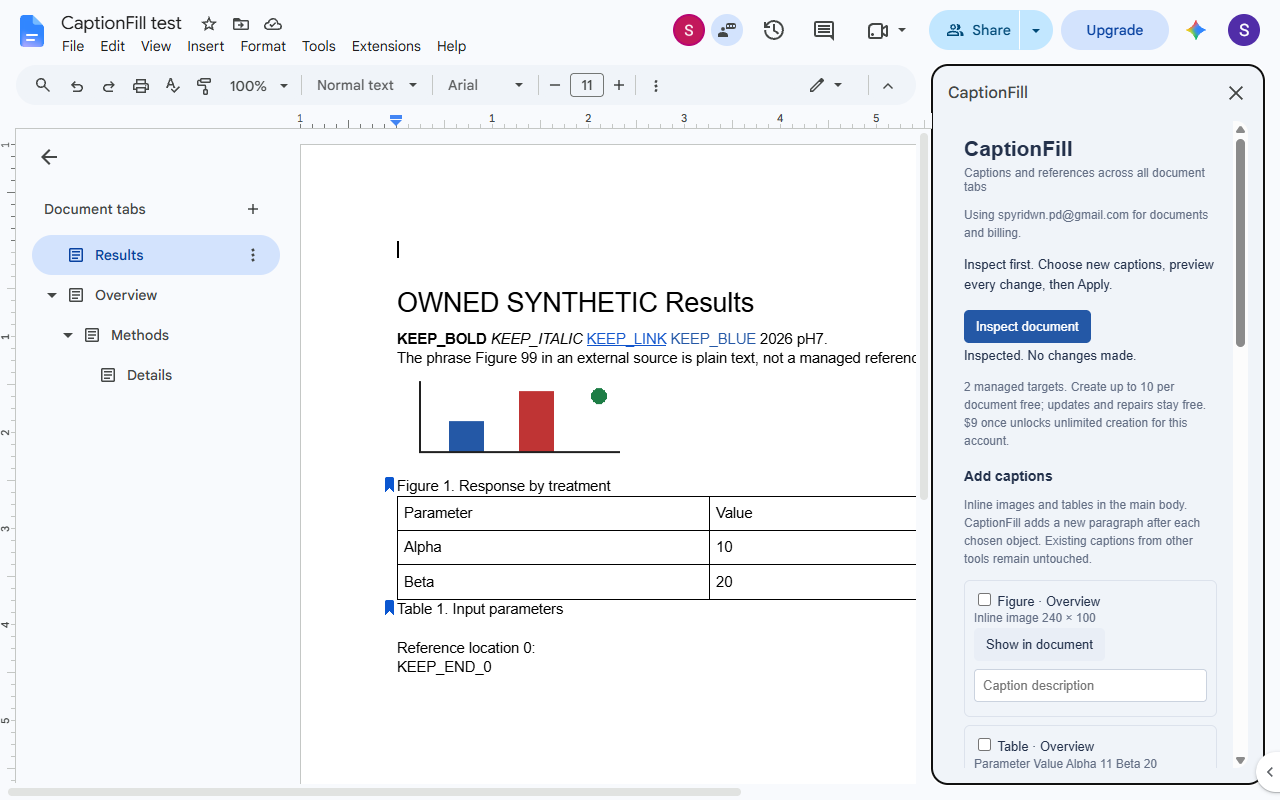
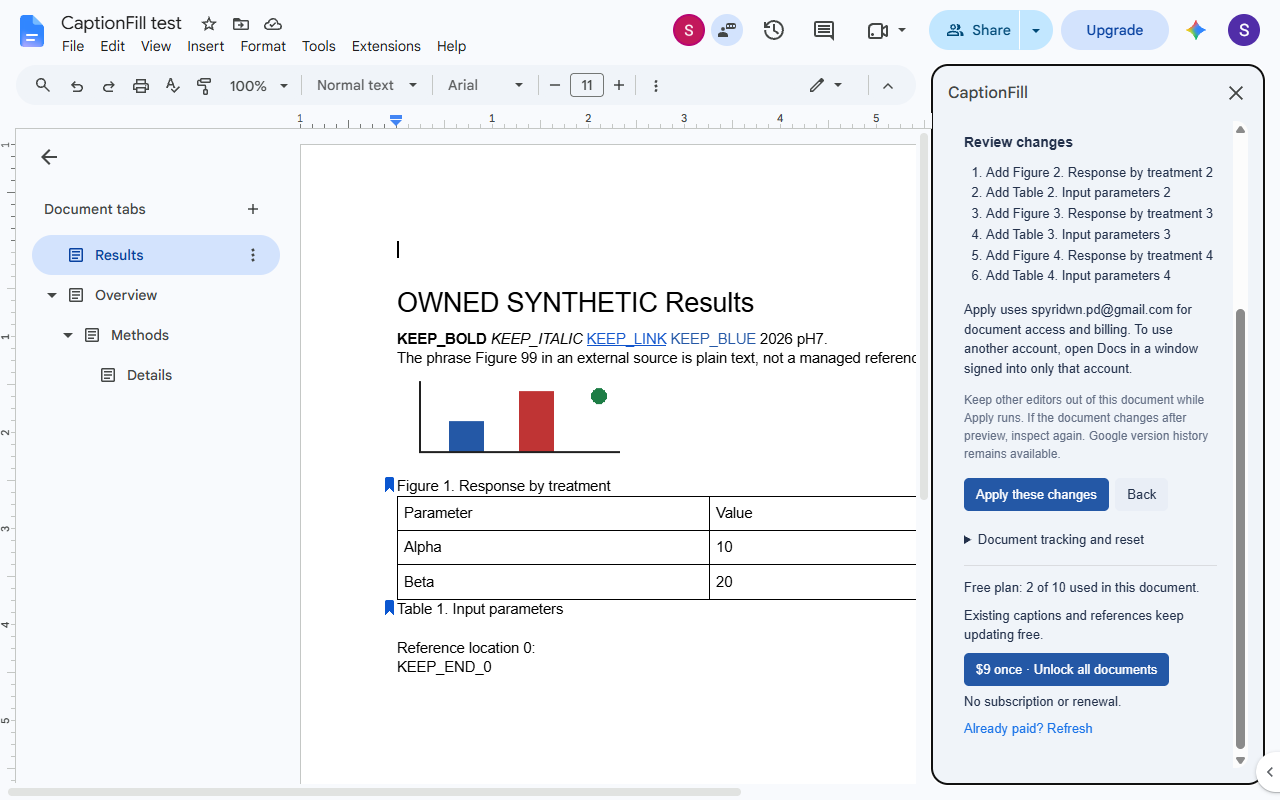
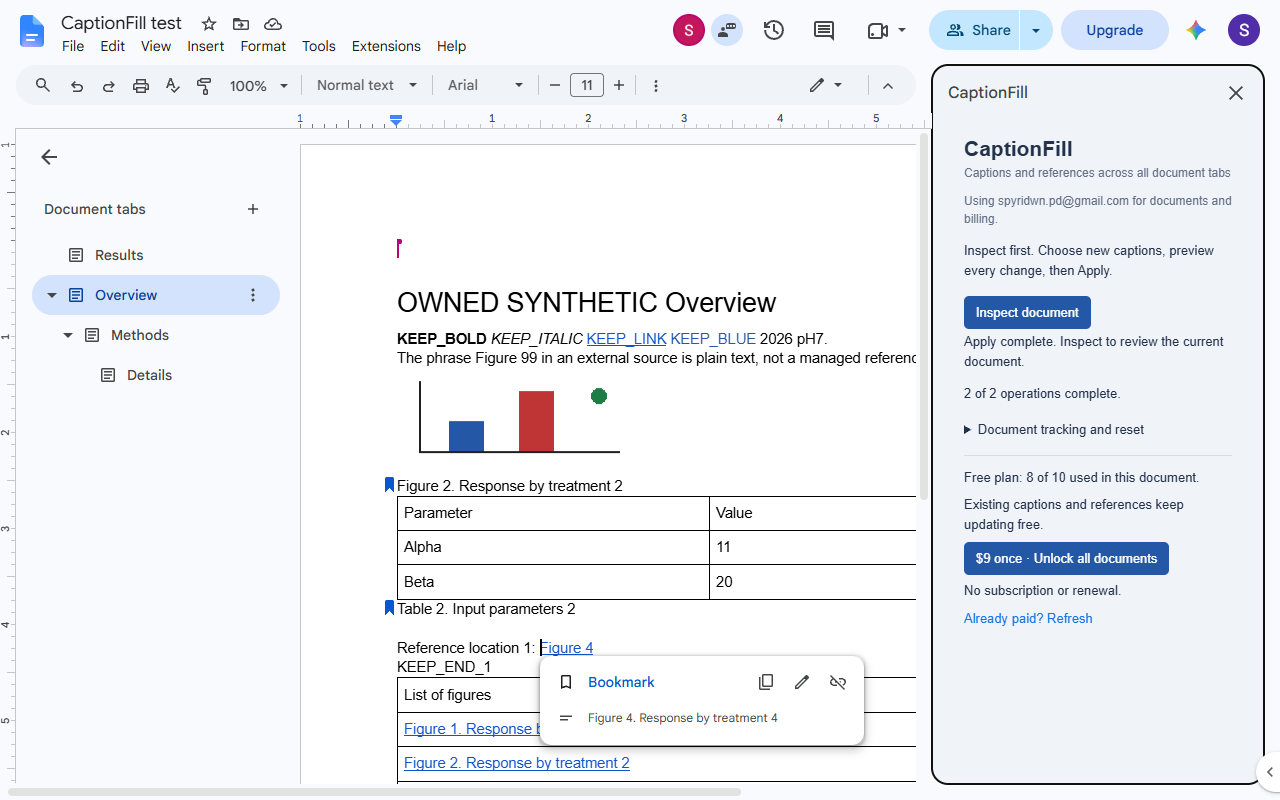
Caption figures and tables in Google Docs™, then keep their numbers and linked references in step as your report changes. Separate figure and table numbers follow document order across tabs, including nested tabs.
CaptionFill is being prepared for Marketplace release. It is not available to install yet.
A preview before changes
- Inspect the document and choose the images or tables to caption. Show in document helps identify the right object.
- Write the caption descriptions and preview the proposed numbers, links and warnings.
- Apply the changes. Later, preview and update again after moving or deleting a target.
Insert a linked reference at your cursor, or add a linked list of figures or tables. Missing targets and copied tracking markers produce warnings rather than silently pointing somewhere else. An interrupted Apply can resume when you reopen the sidebar.
Free for small documents, $9 once for more
- Free: up to 10 caption targets per document. Updating existing managed captions, references and lists stays free when you reach the creation limit.
- One-time unlock: $9 per Google account for unlimited target creation across your documents, subject to Google’s technical limits. No subscription, renewal or scheduled expiry.
The unlock belongs to the account shown in the sidebar. Another collaborator’s creation allowance depends on their own account. Refunds are available within 14 days.
What it works with
CaptionFill supports inline images in main-body paragraphs and top-level native tables. It does not caption floating images, drawings, equations, tables inside other tables, headers or footnotes. It manages its own tracking; it does not import another add-on’s private reference format. Linked figure/table lists have no rendered page numbers.
Removing tracking leaves the visible text and native bookmark links in your document, but ends automatic maintenance. Avoid concurrent document edits during Apply, and check the result before submitting or publishing important work. Google Docs version history remains available.
Your document stays in Google
CaptionFill accesses only the document where you use it, including its tabs. There is no AI service or broad Drive permission. Document content and recovery data stay in Google’s services; Stripe receives your email and handles checkout, without receiving document content.
Privacy policy · Terms of service · Support: spyridwn.pd@gmail.com